Creating an asset archive file for games (featuring compression, checksums, and encryption)
Have you ever wondered how games store and load all or most assets through a proprietary archive file format? In this article, I will attempt to walk anyone reading this through my journey of achieving this exact goal, hoping that they might understand the rather simple technicalities behind implementing such functionality into a custom engine’s numerous pipelines.
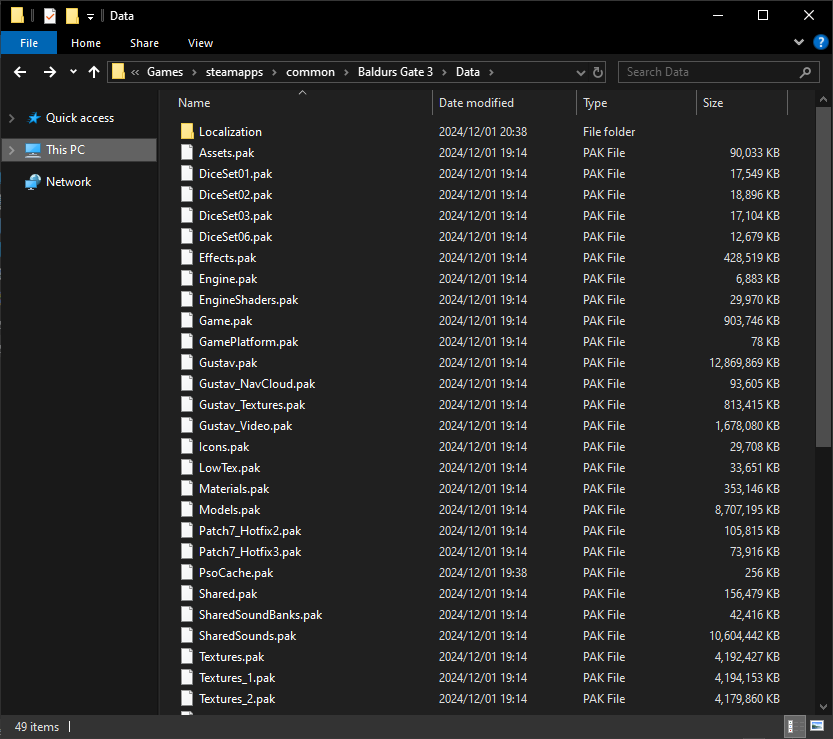
Example of asset archive files (.pak) being used in the Larian Studios hit title, Baldur’s Gate 3
Quick Introduction
I am a second year student at Breda University of Applied Sciences, enrolled in the Creative Media & Game Technologies course, following the programming track. Over the last 8 weeks, I have worked on creating a “Packaged Assets Pipeline”, feature that can be easily embedded into any custom engine, and the main topic of this article. I’ve chosen this specific topic as my self-study project, as I have quite often asked myself the same question that is found at the very beginning of this article, knowing that this is a feature found in a wide majority of games, but not thoroughly documented almost anywhere in the online medium.
CAUTION: Some terms such as “compression”, “checksum hashes”, and “encryption” are going to get covered later in the article in more detail. In the meantime, just think of them as important features that asset archives may benefit from!
What is an asset archive file?
An asset archive file is usually a proprietary file format, that allows storing multiple files in one single big file. In game development, this file format is usually embedded with features such as: file trees (creating your own folder system), compression, encryption, checksums — this is done in order to reduce file-size on disk, reduce chances for game assets to be tampered with and checking if asset data is corrupted. When releasing a game, it is very important for assets to be loaded immediately on request, without too many hiccups — this is where asset archive files come in handy, as reading multiple files that are tightly packed in a single file can be significantly faster than reading multiple files from disk individually (fewer file system operations and mostly due to the operating system storing metadata, e.g. file permissions or timestamps, that are for the most part irrelevant for game development).
Since we store everything in raw binary format, here’s how all our data is going to look like upon inspecting it with a hex editor (in this case, HxD):
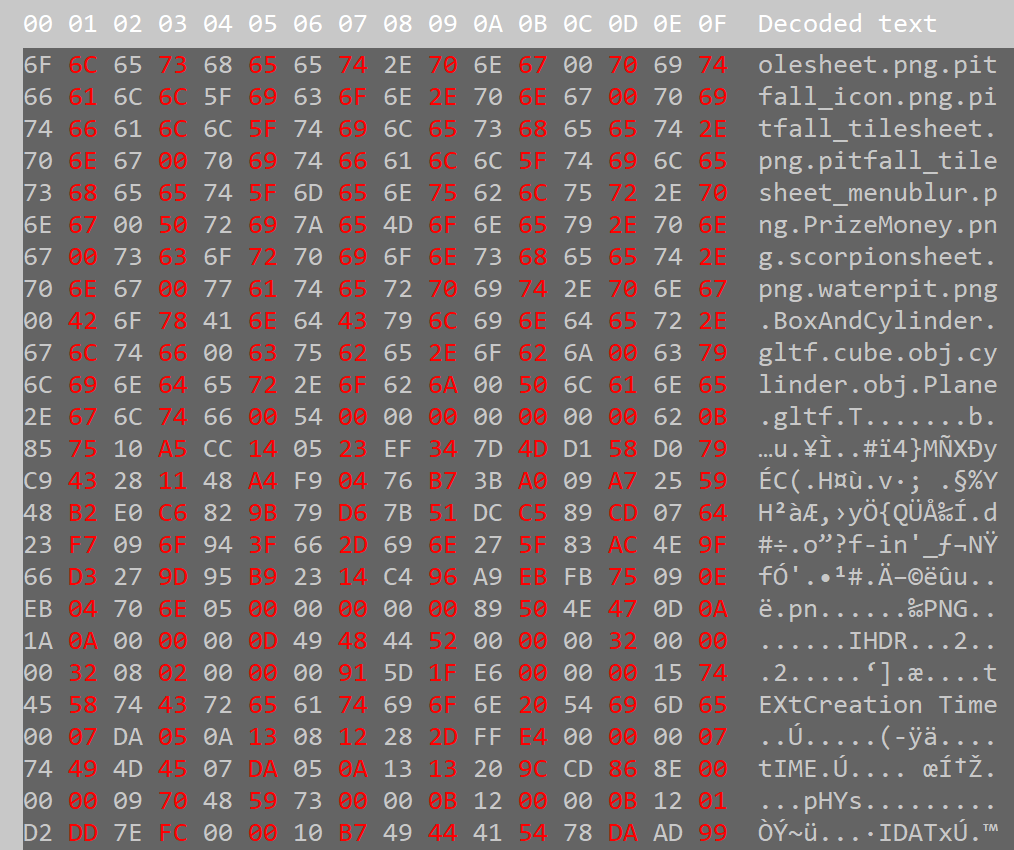
Asset archive from my project inspected with a hex editor, containing filenames, checksums and the raw binary data of GLTFs and PNGs, etc.
What do we need to store in our file archives?
In a file archive, we are able to store plenty of useful data — but it is significantly better to store only the data that you know you may need at some point in time. In that case, I’ll name a few: flags and relevant metadata for the whole archive (e.g. the number of files stored in the archive, a flag to check whether this archive contains encrypted or compressed data, a flag to check whether the archive use checksums hashes, etc.), assets’ metadata (e.g. file size, compressed size, encrypted size, file type, etc.) asset file names or UUIDs (Universally Unique Identifiers). Additionally, if for example checksums are enabled within the archive, storing the checksums as a separate blob of data within the archive would also be useful, as you’re going to need to read them once you try unpackaging the archive.
But most importantly, you will have to store the raw binary data of your physical files. Here’s an example in C++ which indicates how this happens:
void ReadBinaryFile(const std::string& filename, std::vector<uint8_t>& buffer, size_t& file_size)
{
    std::ifstream file( filename, std::ios::binary | std::ios::ate );

    std::streamsize size = file.tellg(); // gets the file size by going to the very end of the file
    file_size = size;

    file.seekg( 0, std::ios::beg );

    buffer.resize( file_size );

    file.read( reinterpret_cast<char*>( buffer.data() ), size ); // read the raw binary data of the file into a buffer

    file.close();
}

std::vector<uint8_t> asset_in_raw_binary;
size_t file_size;
ReadBinaryFile("my_asset.png", asset_in_raw_binary, file_size);

std::ofstream my_file("asset1.bin", std::ios::binary);

my_file.write(reinterpret_cast<char*>(asset_in_raw_binary.data()), file_size);

my_file.close();
Creating your own Data Structures to store relevant bits of data
Based on the information from the previous section (What do we need to store in our file archives?), I’ve created some C++ structs that store the relevant pieces of data that a usual file archive would store, which you can find below.
struct MyHeader
{
  uint32_t number_of_files;
  // flags
  uint8_t checksum;
  uint8_t encryption;
};

struct MyFileMetadata
{
  uint32_t file_size;
  uint32_t compressed_size;
  uint32_t encrypted_size;

  uint32_t file_number; // file number in archive
  uint8_t file_type;
  uint8_t compressed; // this flag is disabled if the file_type is an image (PNG, JPG compression)
};
Let’s break some of this down, as well as talking about the data type choices:
“MyHeader::number_of_files“— This will store the total number of files found in the archive. The data type used for this variable is “uint32_t”, as the maximum value of a unsigned integer is 4294967295. That’s plenty of files to store in a single archive (and also a fun fact, on Windows, folders also have this value as their maximum file storage capability, so it’s nice “mimicking” the capabilities of an OS within your own code).
“MyHeader::checksum” — This will store the type of checksum hashing algorithm that will be used within the archive. If this value is 0, checksums are not enabled in the archive. As an example, in my project I’ve implemented support for the following hashing algorithms: CRC32, MD5 and SHA-256 — so a boolean value (0 and 1) would not be enough to deduce what type of hashing algorithm I would want to choose, hence why the smallest data type “uint8_t” (0 to 255) is just enough.
“MyFileMetadata::file_size” — This will store the total size of the current file within a “uint32_t” variable, which is more than enough as you won’t really find assets which are larger in size than 4.2 Gigabytes (unsigned integer maximum value converted to gigabytes). This piece of data will also come in handy once you have compression/decompression or encryption/decryption support within your archives, as it is necessary to use the original file size in all of these operations.
“MyFileMetadata::file_type” — This will store the file’s type within a “uint8_t” variable. As your archive will definitely not need to support all possible file types out there, you may want just a few — enough to store inside of a single byte variable, from 0 to 255 (but of course, you will have to predefine what type each index is within your own code). You may use this variable to do specific operations on certain file types.
Here is a quick example of how to store such data in a file:
MyHeader header{ 1, 0, 0 };
std::vector<uint8_t> asset_in_raw_binary;
size_t file_size;
ReadBinaryFile("my_asset.png", asset_in_raw_binary, file_size);
MyFileMetadata metadata{ file_size, 0, 0, 0 };

std::ofstream my_archive("archive.bin", std::ios::binary);

my_archive.write(reinterpret_cast<char*>(&header), sizeof(MyHeader));
my_archive.write(reinterpret_cast<char*>(&metadata), sizeof(MyFileMetadata));
my_archive.write(reinterpret_cast<char*>(asset_in_raw_binary.data()), file_size);

my_archive.close();
Parsing and Debugging Data (from a file which you know the contents of)
We’ve managed to store necessary data within our own file format. That is great, but we also need to progress further — by implementing parsing of that data, otherwise we’ve done all of this for basically nothing.
Since we’ve defined our own data types using structs and such (e.g. “MyHeader”, “MyFileMetadata”, etc.), this step is going to be very easy. We just have to declare variables with the said types and read data from the file directly into those variables. Below you can find an example of how easily this is done (also based on the previous example of writing archive and asset data to a file, but this time we’re reading from a file):
MyHeader header;
MyFileMetadata metadata;
std::vector<uint8_t> asset_in_raw_binary;

std::ifstream my_archive("archive.bin", std::ios::binary | std::ios::ate);

my_archive.seekg(0, std::ios::beg); // read from the beginning of the file

my_archive.read(reinterpret_cast<char*>(&header), sizeof(MyHeader));
my_archive.read(reinterpret_cast<char*>(&metadata), sizeof(MyFileMetadata));
my_archive.read(reinterpret_cast<char*>(asset_in_raw_binary.data()), metadata.file_size));

my_archive.close();
Now that we know how to parse such data from a file, you can do many things with it (e.g. load images, compress data, encrypt data, etc.) An important step in using such data is to add debug messages of what is currently getting read or written from an archive file. Additionally, you may also add direct previews of metadata and asset data within your engine’s interface (example below).
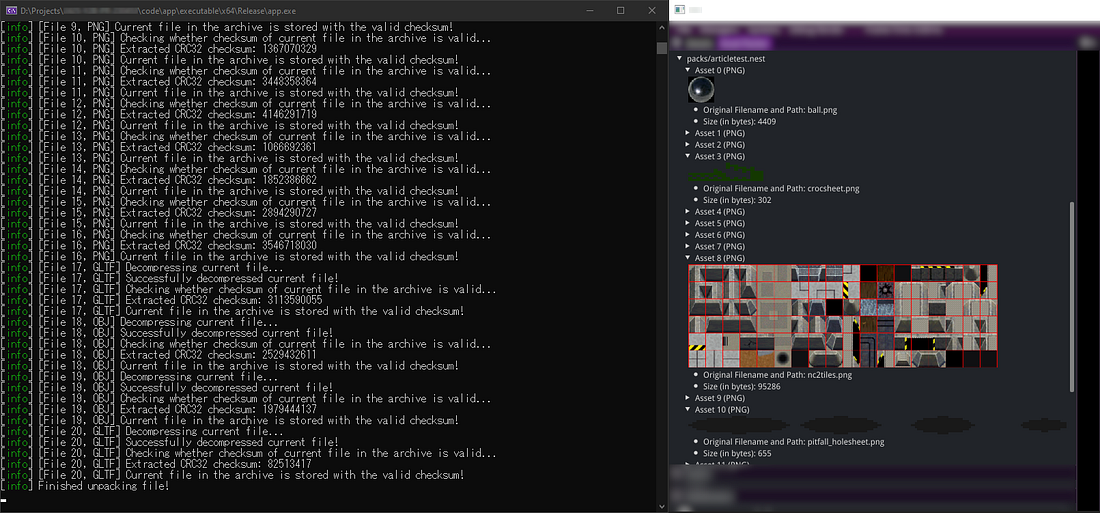
Screenshot from my project containing parsed data from an asset archive and debug logging about the parsing process (Unpackaged assets being displayed correctly in ImGui on the right side of the image)
CAUTION: From this part on, details get a bit more technical! If you want, just skip to the “Conclusion” section from here on.
Compressing and Decompressing Data with the ZSTD Library
Nowadays, as computers and technology has evolved, we are able to store a lot more data, and we are also able to load that big lump of data faster than before. But as a result, some of our files end up being tremendously large and we do not want our game to be 300+ Gigabytes. Hence, data compression exists.
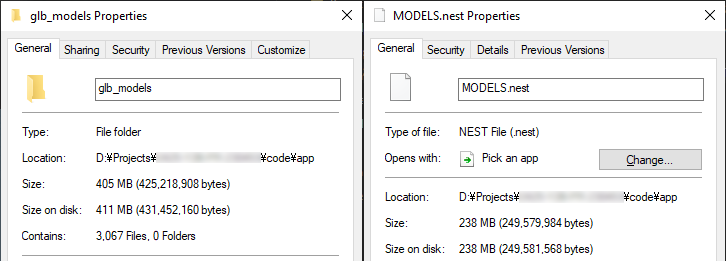
Before and after packaging and compressing 3000+ .glb models on max level with ZSTD
Data compression is the process (or dare I say, the art) of encoding an existent file’s data using fewer bits than the original representation. There are two types of compression algorithms: lossless (no data loss) and lossy (data loss). Lossless compression mostly focuses on eliminating redundancy from a blob of data, while lossy compression focuses on eliminating unimportant or unnecessary data. We’ll focus on lossless compression, as that is what I’ve ended up using in my project.
To achieve compression on my asset archives, I’ve utilised two different compression libraries (and the developer can choose which compression library to use for the archive):
- ZSTD (Slower, more efficient in terms of compression ratio)
- LZ4 (Faster, less efficient in terms of compression ratio)
For the sake of not repeating myself too much, I’ll focus on the way I’ve implemented (de)compression with the ZSTD library, but the LZ4 compression implementation is very much similar to the ZSTD implementation(s).
In order to compress data, you need the following: the uncompressed blob of data, the size of the uncompressed data, a buffer to store the compressed data into and a variable to store the size of the compressed data into. Additionally, if you do not want to use the maximum level of compression, you may also change that. The ZSTD library offers compression levels from -7 (fastest, least efficient) to +22 (slowest, most efficient).
Data decompression is basically compression done in reverse, so we just need to have the exact opposite of the previous prerequisites.
Below you can find two simple examples in code of how to compress and to decompress data:
void zstd::CompressFile(u8* uncompressed_data,
                        const size_t& uncompressed_size,
                        u8* compressed_data,
                        size_t& compressed_size,
                        const int& compression_level)
{
    const size_t max_compressed_size = ZSTD_compressBound(uncompressed_size);

    compressed_size = ZSTD_compress(compressed_data,
                                    max_compressed_size,
                                    uncompressed_data,
                                    uncompressed_size,
                                    compression_level);

    if (ZSTD_isError(compressed_size))
    {
        Log::Error("Compression error: {}", ZSTD_getErrorName(compressed_size));
        return;
    }
}

void zstd::UncompressFile(u8* compressed_data,
                          u8* uncompressed_data,
                          const size_t& original_size,
                          size_t& compressed_size)
{
    std::size_t result = ZSTD_decompress(uncompressed_data,
                                         original_size,
                                         compressed_data,
                                         compressed_size);

    if (ZSTD_isError(result))
    {
        Log::Error("Decompression error: {}", ZSTD_getErrorName(result));
        return;
    }
}
Checksums and why they are the most important feature in such a pipeline
Usually, file systems have an implementation where if you try using or getting a file that has corrupt data, it’ll throw you an error and won’t let you use it. Since we’re basically managing our own file system here, by creating our own file archive, we also have to tackle this problem. This is where checksum hashing algorithms come in handy. Checksums can be used to verify data integrity (but do not guarantee data authenticity), which is exactly what we need to verify whether the data that we’ve stored in our archives is corrupt or not.
Hashing algorithms used for checksums:
- CRC32 (32-bit) — fastest, more margin for overlap; looks like: fb1e2671
- MD5 (128-bit) — most used in games; looks like: 248cfce10656b0aa30bf1c8bb8c17992
- SHA-256 (256-bit) — slowest, least margin for overlap; looks like: 455e1ebb2b2ad658bc0c380233d3ba1afe90393a32b5e7c8b47d0b21c3d119f3
The more bits you have, the less there is margin for overlap after calculating multiple file’s checksums.
Due to time constraints, I’ve had to use a hashing library I’ve found online to perform these hash calculations within my project: https://github.com/stbrumme/hash-library
Here is an example of how simple it is to use this library:
// CRC32
u32 checksum_hash{};
checksum_hash = crc32_fast(asset_buffer.data(), size);

// MD5
std::string checksum_hash{};
MD5 md5{};
checksum_hash = md5(asset_buffer.data(), asset_buffer.size());

// SHA-256
std::string checksum_hash{};
SHA256 sha256{};
checksum_hash = sha256(asset_buffer.data(), asset_buffer.size());
Another interesting use case for checksum hashes would be an asset referencing system, so if for example two different models share the same texture file, you would already have it in memory and its checksum — hence after calculating the checksum on model load you could use it to indicate that this already exists in memory and it’ll use the initial texture instance which is already loaded into memory. (Thanks Bojan!)
Encryption
Data Encryption is used in file archives in order for the data not to be tampered with by external sources (or well, it’s not doable by the simplest of users at least). Encryption algorithms can be found in libraries such as OpenSSL, but for simplicity sakes and once again due to time constraints, I’ve ended up using a header file-only library which implements a few encryption algorithms from the Advanced Encryption Standard (https://github.com/kkAyataka/plusaes). Following a use case example I’ve found online of encryption in asset archives (found here), I’ve used the simplest encryption algorithm: Electronic codebook (ECB).
As seen in the example above, users found out that Rockstar Games has encrypted asset data using the Electronic codebook algorithm, the data being encrypted (and decrypted) in 16-byte chunks. Encrypting your data in smaller chunks can improve performance. I’ve followed this example and implemented it in my own code:
// Based on data encryption found in GTA IV asset archives:
// https://gtamods.com/wiki/Cryptography#Encryption_Algorithms
void AssetPack::EncryptData(std::vector<u8>& raw_data,
                            size_t& encrypted_size)
{
    std::vector<u8> encrypted_data{};
    static constexpr auto block_size = 16;
    const auto block_count = static_cast<int>(raw_data.size() / block_size);
    const auto remaining_bytes = static_cast<int>(raw_data.size() % block_size);

    encrypted_size = static_cast<size_t>(block_count * block_size);
    encrypted_data.resize(encrypted_size);

    for (int i = 0; i < block_count; i++)
    {
        const u8* block_of_data = raw_data.data() + i * block_size;
        u8* encrypted_block = encrypted_data.data() + i * block_size;


        plusaes::encrypt_ecb(block_of_data,
                             block_size,
                             &key[0],
                             static_cast<unsigned long>(key.size()),
                             encrypted_block,
                             block_size,
                             false);

    }

    // This if statement gets executed if raw_data.size() is not divisible by 16
    // The remaining bytes do not get encrypted (same as in the GTA IV archive example)
    if (remaining_bytes > 0)
    {
        encrypted_data.insert(encrypted_data.end(), raw_data.end() - remaining_bytes, raw_data.end());
    }
    std::swap(raw_data, encrypted_data);

}
Hold on! We’ve missed a step, and our encryption does not work as intended. In order to encrypt (or to decrypt) data, this is done using a “key”, because the whole encryption and decryption pipeline relies on this aspect.
std::vector<uint8_t> key = plusaes::key_from_string(&"BredaUniversity1"); // 16 characters
You may make this variable static and use it anywhere as intended for encrypting and decrypting data.
Potential Noteworthy Additions
Below, I’ve listed a few functionalities that an asset archive pipeline may need to support to improve development and the overall quality of the pipeline:
- Functionality that allows the developer to add and remove specific files from an asset archive — improves development time and is a nice feature to have overall.
- Add support for hot-reloading asset archives — significantly improves development time and makes the whole pipeline a lot more useful in your average project.
- Add support for loading a single asset (compressed/encrypted) from an asset archive — probably the most widely used implementation from such a pipeline.
- Add the Asset Referencing System that we’ve discussed at the end of the “Checksums” section.
Conclusion
Integrating an Asset Archive Pipeline into your project can be a powerful tool, especially since you have extra control over the data that you want to use within your game. As stated before, they reduce file I/O operations, may reduce disk space usage, protects your data in the way that you’ve programmed it (and the methods that you’ve used), but may also help you figure out problems such as data corruption, all of this through your own project.
In this article, we’ve gone into the depths of what composes an asset archive, why they are used in games, but we’ve also gone into the depths of implementations that benefit an asset archive and make it more “up to standard” with technology that is found in some of your favorite games.
To close this off, I’ll showcase an example of a nearly finalized Asset Archive Pipeline implemented in my own project:
Demo from my own university project, which is the main reason for this article's contents

Sources
https://store.steampowered.com/app/1086940/Baldurs_Gate_3/
https://www.buas.nl/
https://github.com/facebook/zstd
https://github.com/stbrumme/hash-library
https://github.com/stbrumme/crc32
https://github.com/kkAyataka/plusaes
https://gtamods.com/wiki/Cryptography
https://en.wikipedia.org/wiki/Encryption
https://en.wikipedia.org/wiki/Data_compression
https://en.wikipedia.org/wiki/Block_cipher_mode_of_operation#Electronic_codebook_.28ECB.29
https://en.wikipedia.org/wiki/Cyclic_redundancy_check